



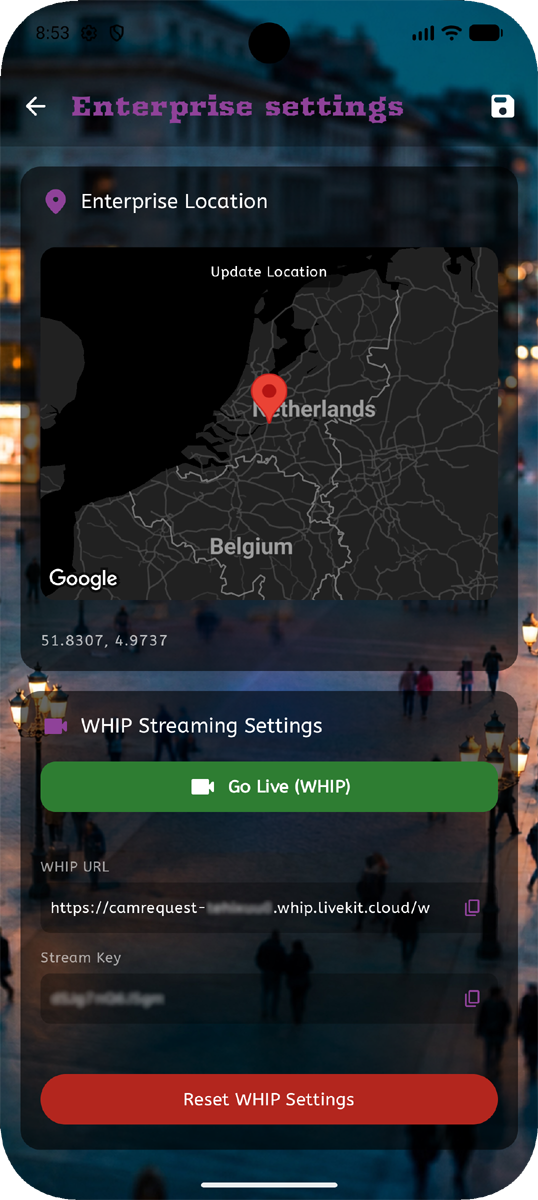
 Stream high-quality, ultra-low latency video directly from OBS Studio to your CamRequest app using the WHIP (WebRTC HTTP Ingestion Protocol) protocol. Follow these quick steps to set up your OBS stream in under a minute.
Step 1: Get Your WHIP Credentials in CamRequest
- Open the CamRequest app on your Android device.
- Go to My account -> Enterprise Settings. (You'll need to own an Enterprise product from our shop.)
- Scroll down to the WHIP Stream Settings section.
- You will see two key pieces of information:
-
- WHIP-URL
- Stream Key
-
- When this key information isn't shown yet, click 'Generate WHIP Settings' to fetch them the first time.
Step 2: Configure OBS Studio or other streaming software
- Open OBS Studio on your computer.
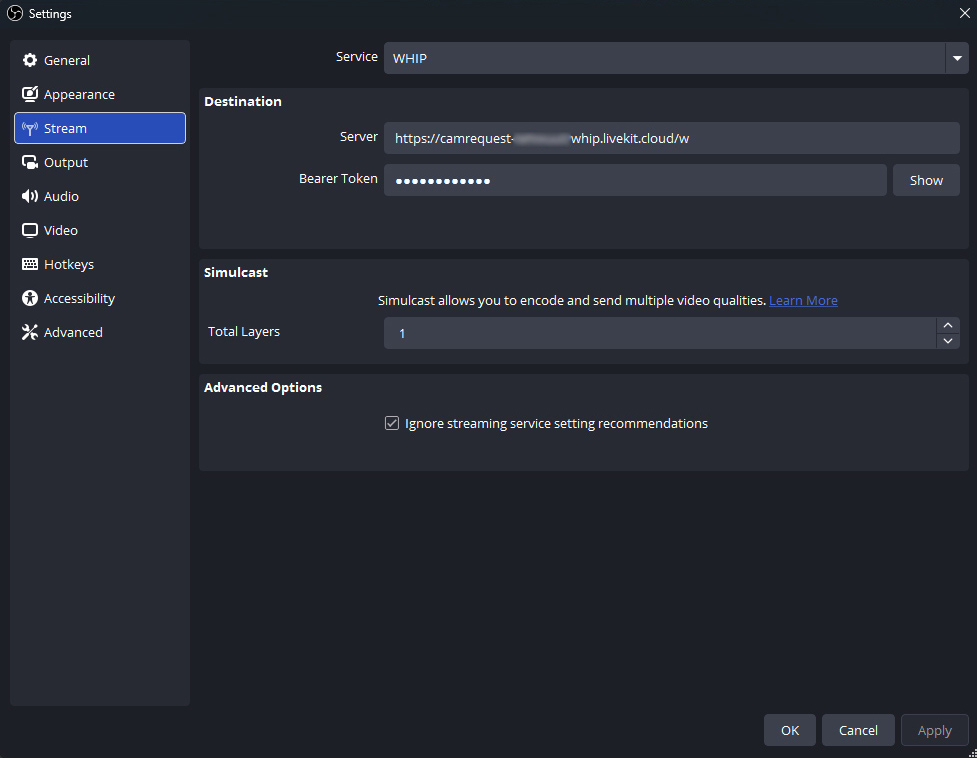
- Go to Settings -> Stream.
- Set Service to WHIP.
- Fill in the Destination details using the values from your CamRequest app:
- Server: Paste the WHIP-URL from CamRequest.
- Bearer Token: Paste the Stream Key from CamRequest.
- Click Apply and then OK.
💡 Tip: If you ever need to reset your streaming credentials, simply tap the Reset WHIP Settings button inside the CamRequest app and update the new values in your software.
 Step 3: Go Live!
- Set up your scenes and sources in OBS Studio as usual.
- Click Start Streaming in OBS Studio or other streaming software.
- In your CamRequest app, tap Go Live (WHIP) to publish your live stream to CamRequest instantly!