



Enterprise subscribers can relay active field broadcasts directly into professional production software such as OBS Studio, vMix, or Wirecast.
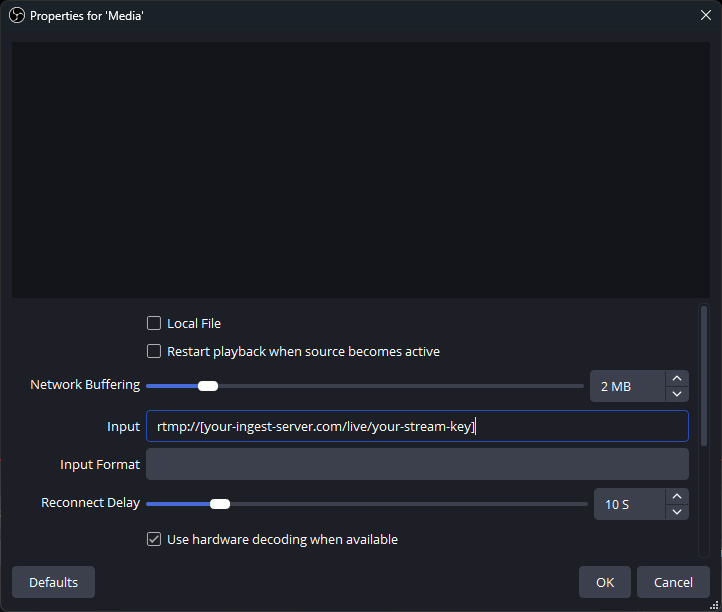 Method 1: Direct RTMP Stream (Media Source)
Use this method when treating the field broadcast as a standard video source for hardware switchers, SDI converters, or conventional production pipelines.
Step 1: Find your stream
- Be sure you entered your own endpoint rtmp-url in the Enterprise settings screen in CamRequest.
- Navigate to the target broadcast in CamRequest.
- Hit the share button icon to share the stream to you.
Step 2: Add the Source to OBS Studio
- Open OBS Studio.
- In the Sources dock at the bottom, click the + (Add) button.
- Select Media Source and assign it a name (e.g., CamRequest Live Feed).
- Uncheck the Local File checkbox.
- In the Input field, paste the RTMP URL copied from Step 1.
- Leave Input Format blank (or enter rtmp).
- Ensure "Use hardware decoding when available" is checked to minimize workstation CPU overhead.
- Click OK.
Once the field contributor is live and the Egress service begins pumping data, the feed will display directly on your OBS canvas.
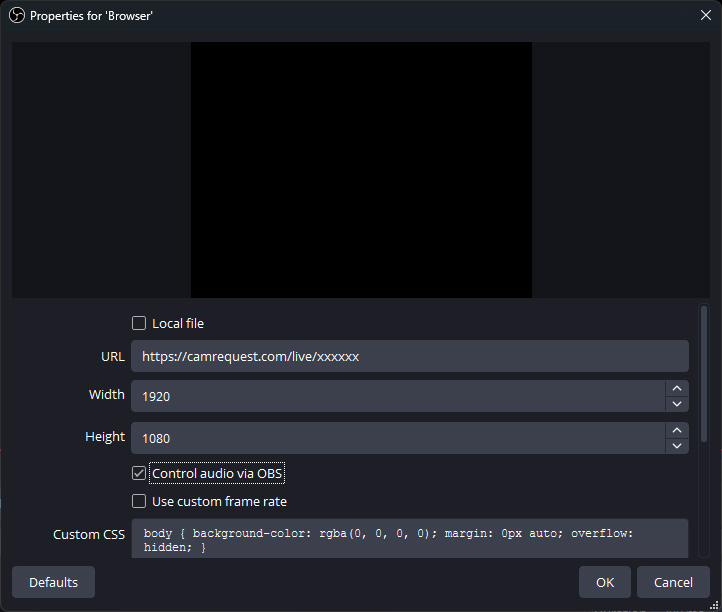
Method 2: Direct WebRTC Feed (Browser Source)
Use this method when real-time ground interaction and minimal delay are essential (sub-second latency under 300 ms), such as live on-air cues or direct field direction.
Step 1: Find your stream
- Leave your enterprise rtmp-url in the Enterprise settings screen in CamRequest empty.
- Navigate to the target broadcast in CamRequest.
- Hit the share button icon to share the stream to you.
- Copy the unique live viewer URL (e.g., [https://camrequest.com/live/xxxxx).
Step 2: Add a Browser Source in OBS Studio
- Open OBS Studio.
- In the Sources dock, click +.
- Select Browser.
- Name the source (e.g., CamRequest WebRTC) and click OK.
- Configure the properties:
- URL: Paste your unique CamRequest stream link.
- Width: 1920 (or 1280 for 720p).
- Height: 1080 (or 720 for 720p).
- Check "Control audio via OBS" if you wish to adjust the field audio using the standard OBS audio mixer.
- Click OK.
Best Practice Tips
-
Network Buffering (RTMP): If experiencing network jitter, open the Media Source properties and configure network buffering to a fixed threshold (e.g., 1–2 MB).
-
Audio Monitoring: To monitor field audio locally on headphones, open the OBS Audio Mixer gear icon > Advanced Audio Properties > set Audio Monitoring to Monitor and Output.
-
Session Teardown: Stop active Egress sessions directly in your enterprise dashboard when finished to release encoding resources.